
A calm, clear view of your money
Clarifyi is a personal finance tracker for iPhone. Track accounts, spending, bills, budgets and goals, with clear charts and insights, and keep it all private.
- No account to sign up for
- No ads, no tracking
- Your data stays on your iPhone
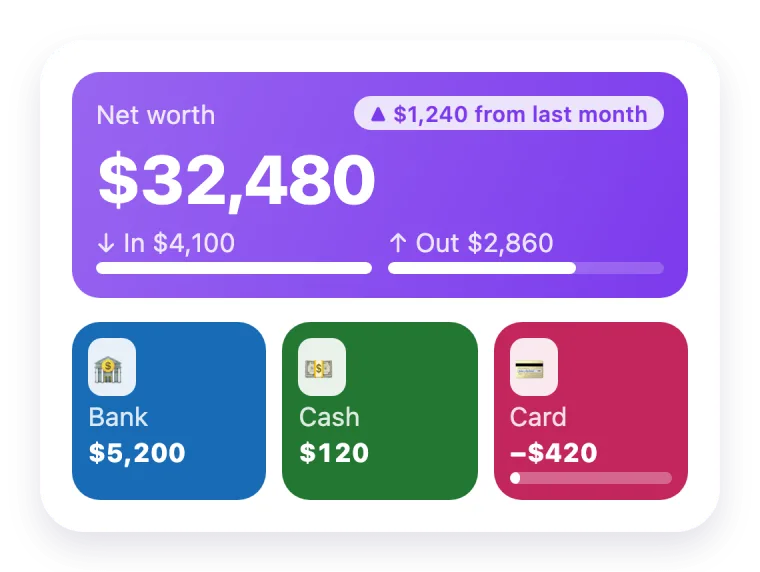
All your money, one view
Cash, bank, cards, e-wallets and loans side by side, with your net worth worked out for you.
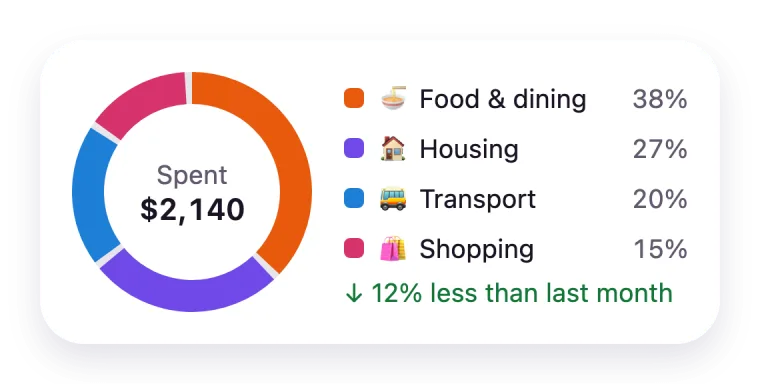
See where it goes
Spending by category, trends over any period, unusual days flagged, and plain-language insights.
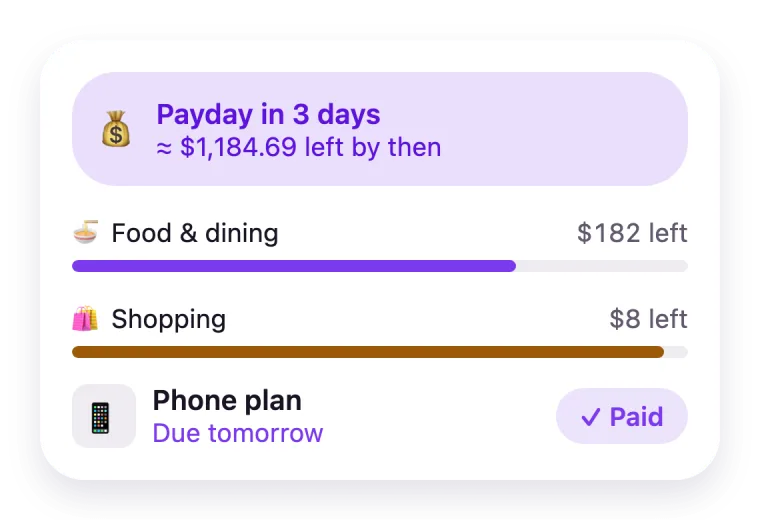
Plan ahead
Budgets that keep pace, bills and instalments before they’re due, and what you’ll have left by payday.
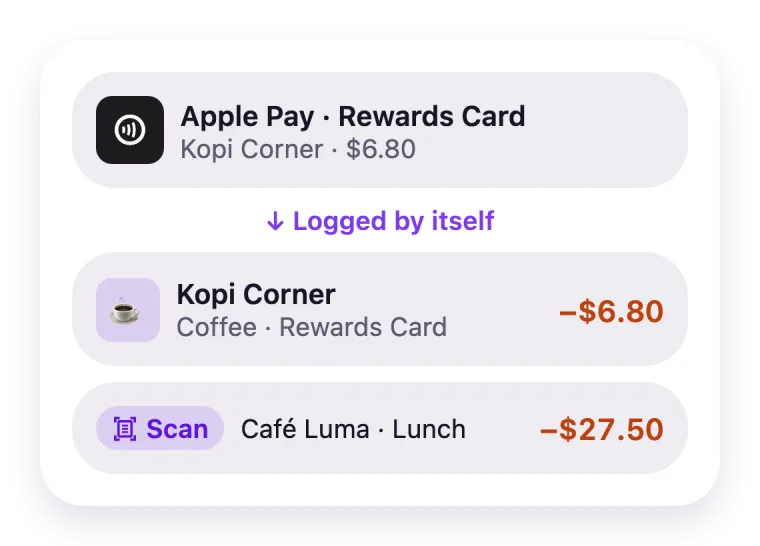
Less typing
Apple Pay payments log themselves once you add the shortcut, and a snapped receipt fills in the rest.
Receipt scanning is part of Clarifyi Pro.
Yours, on this phone
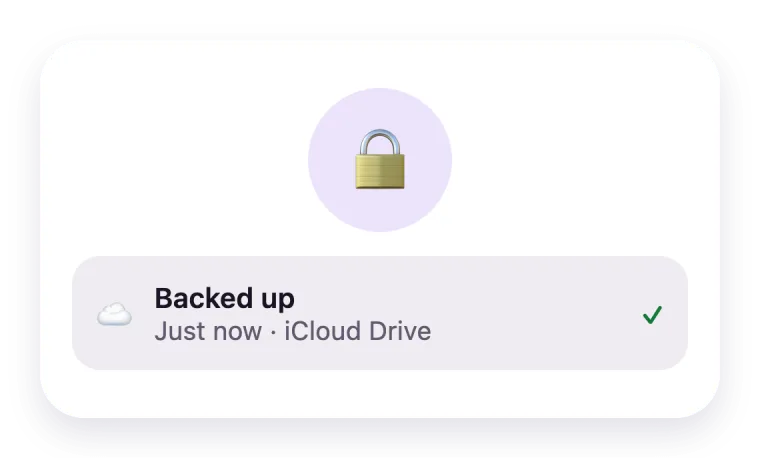
No sign-up and no ads. Your data stays on your iPhone, backed up to your own iCloud Drive.
Delete everything at any time in Settings → Backup & restore.
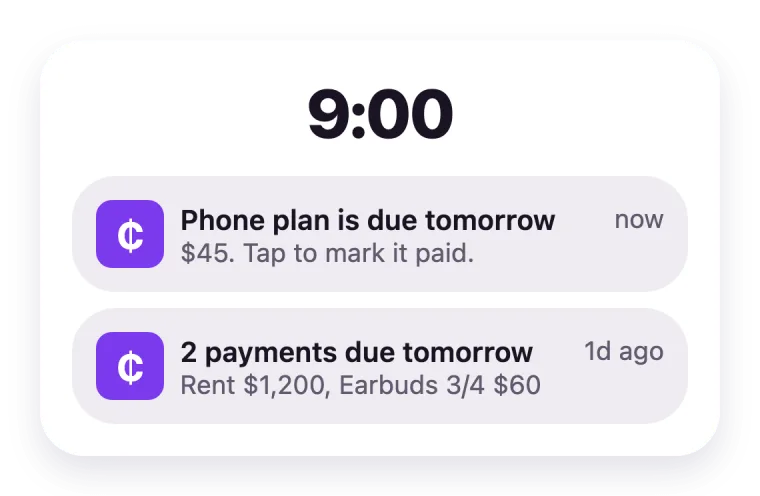
Never miss a payment
A nudge before bills, subscriptions and instalments are due. Tap it to mark the payment paid.
More with Pro
For trips, shared costs and a look that’s all yours.
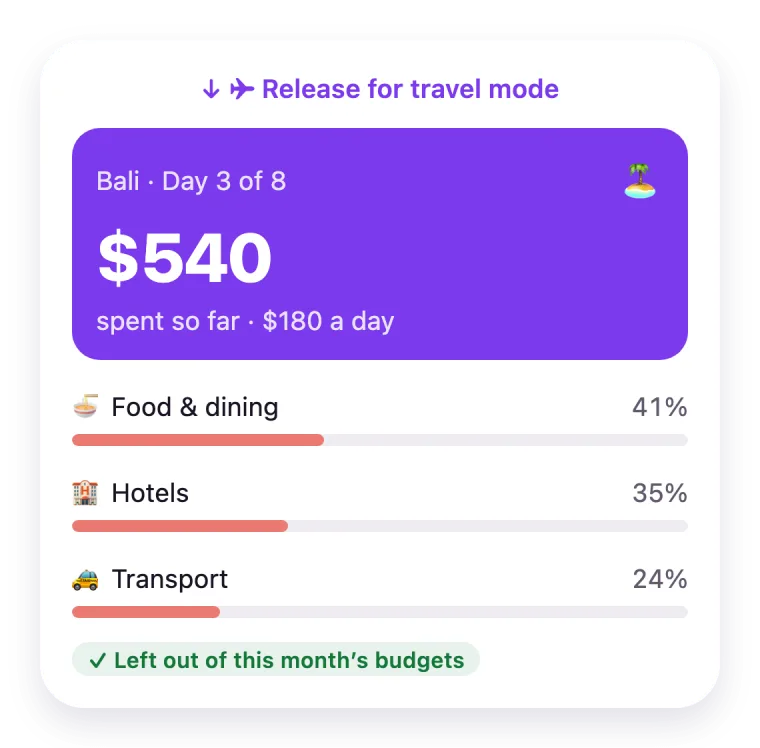
Travel modePRO
Pull down on Overview when you travel: spending goes on the trip, in its currency, kept out of your usual budgets.
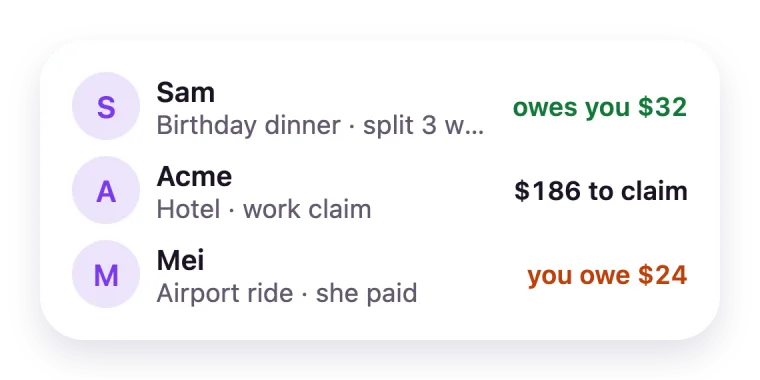
Split it, claim it backPRO
Split a bill, see who owes you, and keep track of work expenses to claim back.
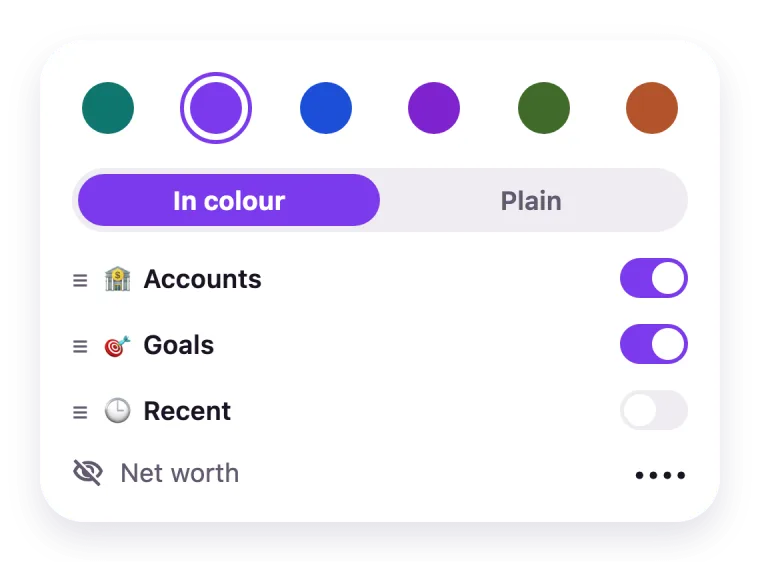
Make it yoursPRO
Your own colours, and the sections you want on Overview, in your order.
Free, with Pro when you want more
Free
Accounts and net worth, spending and income, bills and reminders, budgets, a goal, Money ahead to payday, charts and insights, backups to iCloud.
Clarifyi Pro
Apple Pay logging past the first 10, receipt scanning, trips and travel mode, splits and claims, instalment plans, more budgets and goals, Money ahead further out, and customizing. Monthly, yearly or once.
Support
Help & guides › How each part of Clarifyi works, and answers to common questions.
Questions, problems or ideas? Write to support@clarifyiapp.com and we’ll reply.
Moving to a new phone: keep iCloud backup on (Settings → Backup & restore), then on the new phone choose Restore latest iCloud backup.
Deleting your data: Settings → Backup & restore → Delete all data.