
📅 Bills, subscriptions and reminders
See what’s coming up and never miss a payment.
Updated 23 November 2026
When you add an expense, choose Recurring or Subscription under the amount to repeat it (every week, month, 30 days, 3 months or year), or Upcoming for a one-off payment later. All of them are in Settings → Subscriptions & bills.
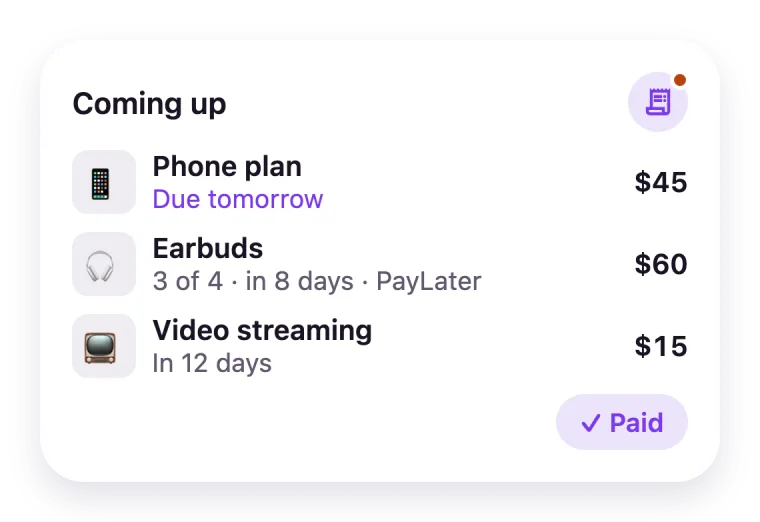
- Tap the receipt button on Overview (left of +) to open Claims & bills: everything due in the next 14 days.
- Tap ✓ Paid when you’ve paid. The form opens filled in, so you can change the amount or the card used, then Save. Or let them record themselves (below).
- Skip moves a bill to its next date without recording a payment.
Tip: Give a subscription its logo: open it and tap Choose photo. It’s cut square for you, and shows on its payments too.
Rather an emoji? Type one in the box under the bill’s icon in its editor. It shows on the bill and its payments in place of the category’s.
Recording them automatically
At the foot of Subscriptions & bills, turn on Record subscriptions automatically, Record bills automatically, or both. On its due date each one records itself from its account at its usual amount, then moves to its next date. If you haven’t opened Clarifyi for a while, the missed ones are recorded on their own dates. A bill that varies (electricity, say) is recorded at its usual amount: open the payment to change it.
Reminders
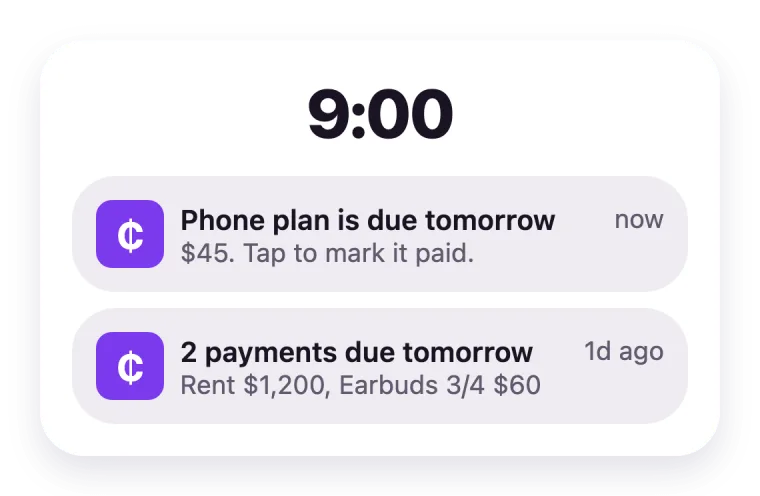
Settings → Reminders: a notification on the day, or 1 or 3 days before, at the time you choose, for bills, subscriptions, instalments and credit card statements. Several payments due the same day share one reminder. Tapping it opens Claims & bills, or the card for a statement.
Tip: A dot on the receipt button means something new or changed is waiting there.