
⚡ Logging Apple Pay by itself
Set up Shortcuts once, and each Apple Pay payment records itself.
Updated 24 November 2026
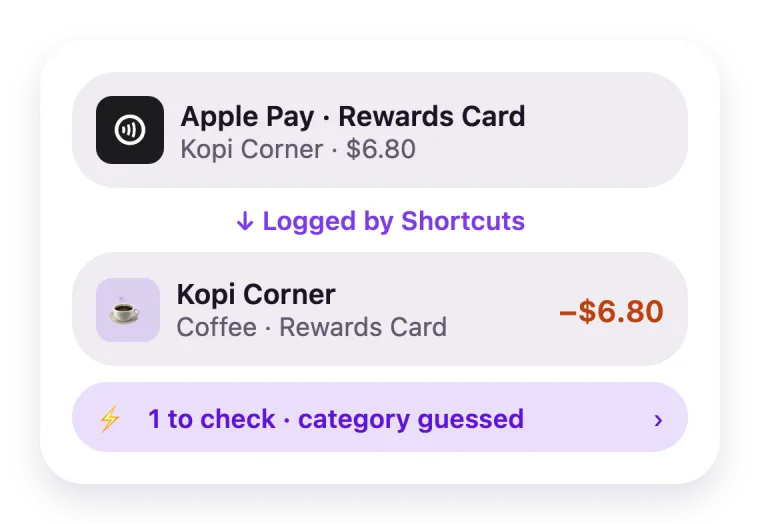
Clarifyi adds a Log a Payment action to the Shortcuts app. Run it from a Wallet automation and every Apple Pay payment is recorded with its amount, shop and card, without opening Clarifyi. It takes the category the shop had last time.
Setting it up
The quick way: in Clarifyi, go to Settings → Shortcuts and tap Get the ready-made shortcut, then Add Shortcut. It’s already set to run after every Apple Pay payment. To build it yourself instead:
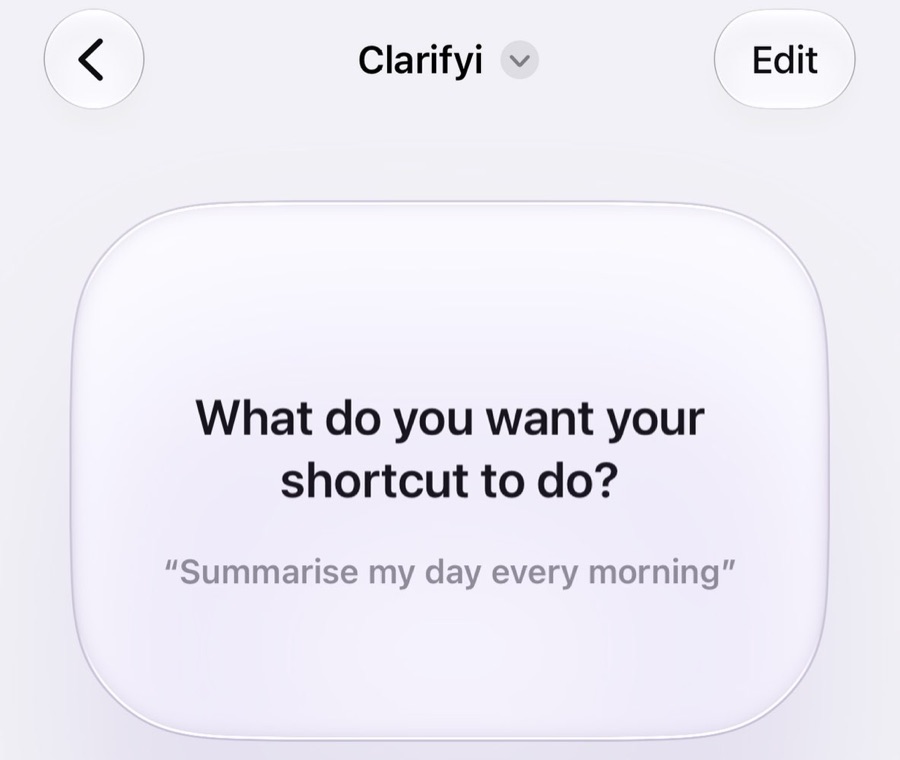
- Open the Shortcuts app and go to Automation. Skip “What do you want your shortcut to do?” and tap Edit at the top right.
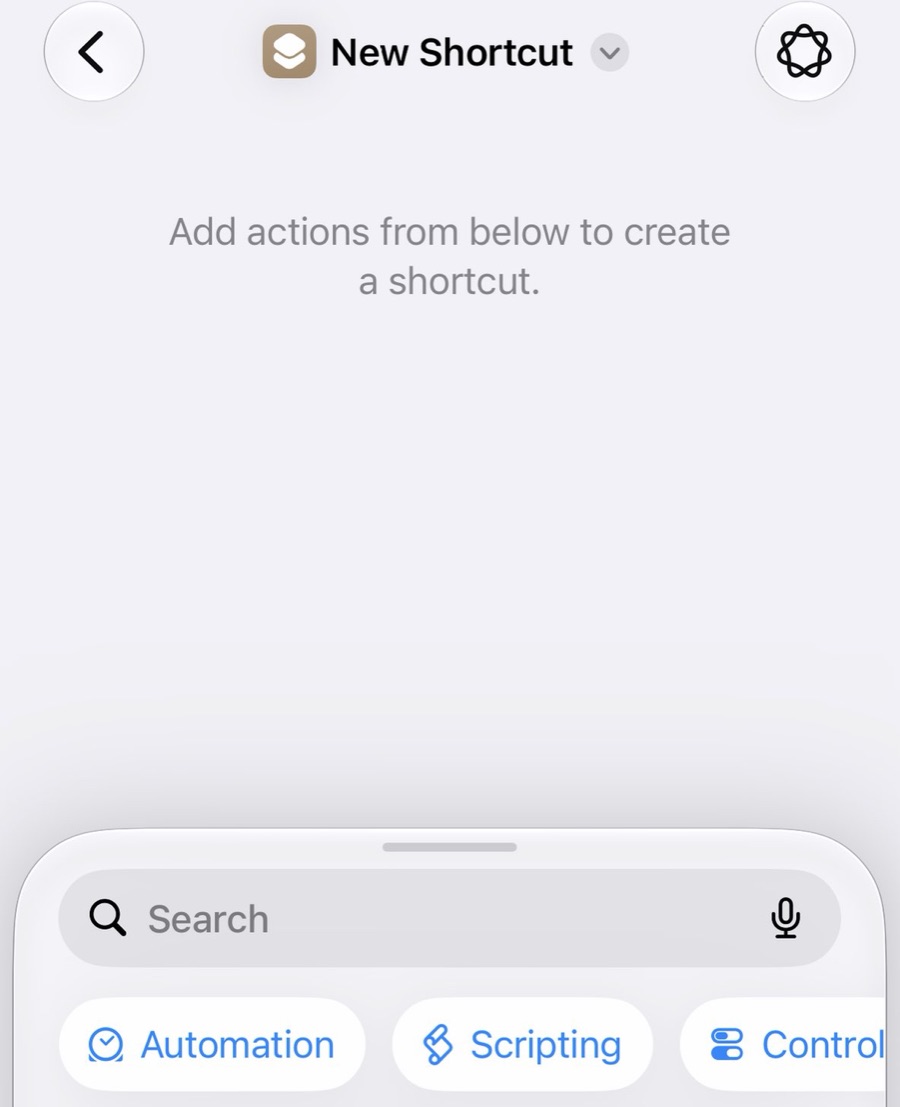
- A new shortcut opens. In the panel at the bottom, tap Automation.
- Scroll down and choose Wallet.

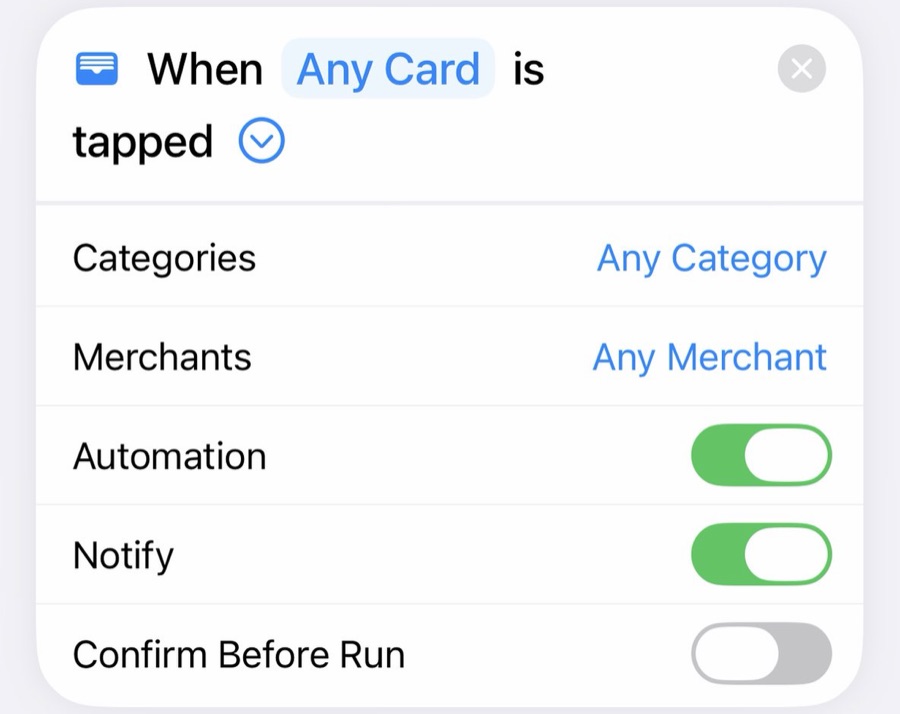
- Tap ⌄ beside Any Card. Leave Any Category and Any Merchant, keep Automation on and Confirm Before Run off.
 123
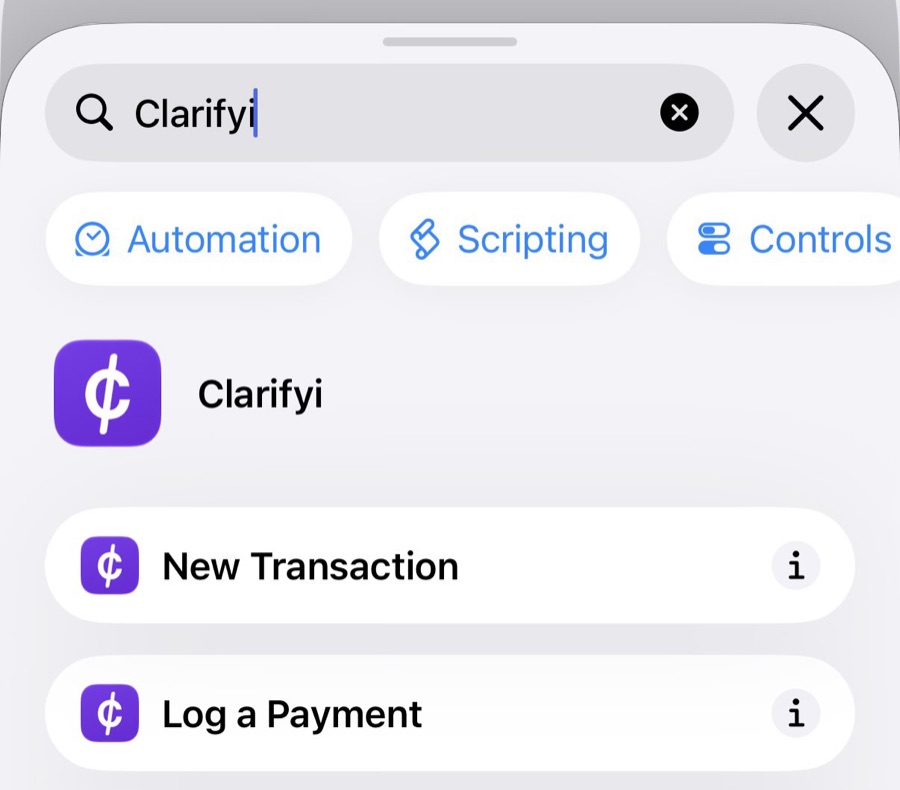
- In the search at the bottom, type Clarifyi and choose Log a Payment.
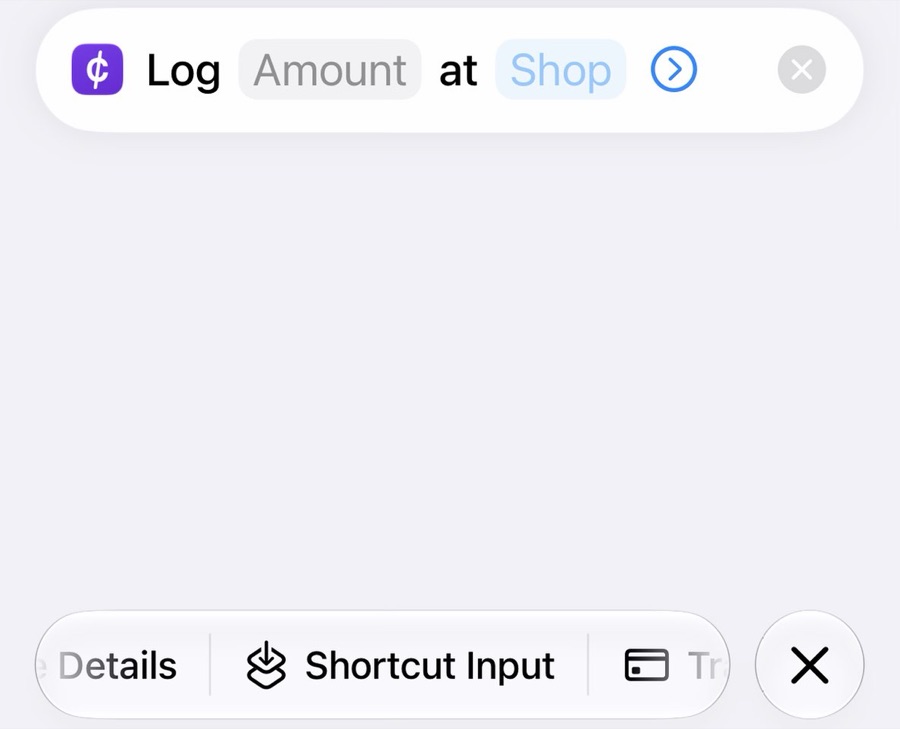
- Tap Amount, scroll the bar above the keyboard to the right until you see Shortcut Input, and tap it.
 12
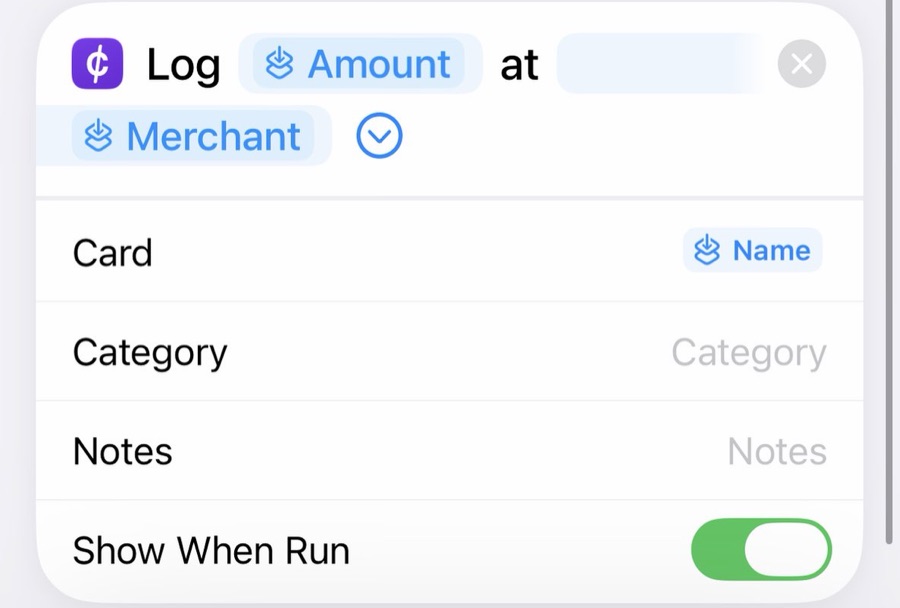
- Tap Shortcut Input in the action and choose Amount. Set the shop to Merchant the same way, tap ⌄ and set Card to Name. Leave Category empty.
 123
- Tap New Shortcut at the top to name it, then go back. Your next Apple Pay payment is recorded on its day and time.
On iOS 26 or earlier, the steps differ a little: in Automation, tap +, choose Wallet, pick your cards and Run Immediately, tap Next, then New Blank Automation and Add Action, and carry on from step 5.
Tip: Name your Clarifyi account like the card in Wallet (“Rewards Card”) so payments land on the right one.
It works when you pay with Apple Pay on your iPhone or your Apple Watch.
A payment that names no card goes on your default account (Edit account → Default for payments).
If Log a Payment doesn’t show up when you search, open Clarifyi once after installing or updating it, then try again.
To check
When Clarifyi had to guess (a shop it hasn’t seen, a card name it didn’t recognize, a charge in another currency), the payment waits under To check on Overview. Tap Looks right, or open it to change it: saving it confirms it. If you also typed the same payment in, it says “Maybe already recorded”, so you can delete the extra one.
Free and Pro
Saving payments by themselves is part of Clarifyi Pro (Pro), and your first 10 are free to try it. Without Pro, the action opens Clarifyi with the payment filled in, so you only tap Save. You never lose a payment.
Siri and more
- Say “Log a payment in Clarifyi” and Siri asks for the amount.
- Say “Add an expense in Clarifyi” to open the form.
- Use Log a Payment in any shortcut: an NFC tag at the coffee shop, the Action button, a Home Screen icon.
Everything stays on your iPhone. The automation passes Clarifyi only the amount, the shop and the card name, and nothing is sent anywhere.